Is Your Mac's Internet Down or Just Slow? How to Tell in a Minute
A page that won't load could mean two very different things: your internet is down, or it's working but slow. The fix is different for each, so it's worth knowing which one you're dealing with before you restart everything. Here's how to tell on a Mac, in about a minute.
Down and slow are different problems
Down means nothing gets through: no website, no app, no reply from anything outside your home network. Slow means things do get through, just late, or some of them get lost along the way. A slow connection usually comes from a weak Wi-Fi signal, a busy network, or your provider having a bad day. A down connection usually means the router, the modem or the provider has lost the link entirely.
Check it yourself in Terminal
Open Terminal (in Applications, then Utilities) and run these three checks in order.
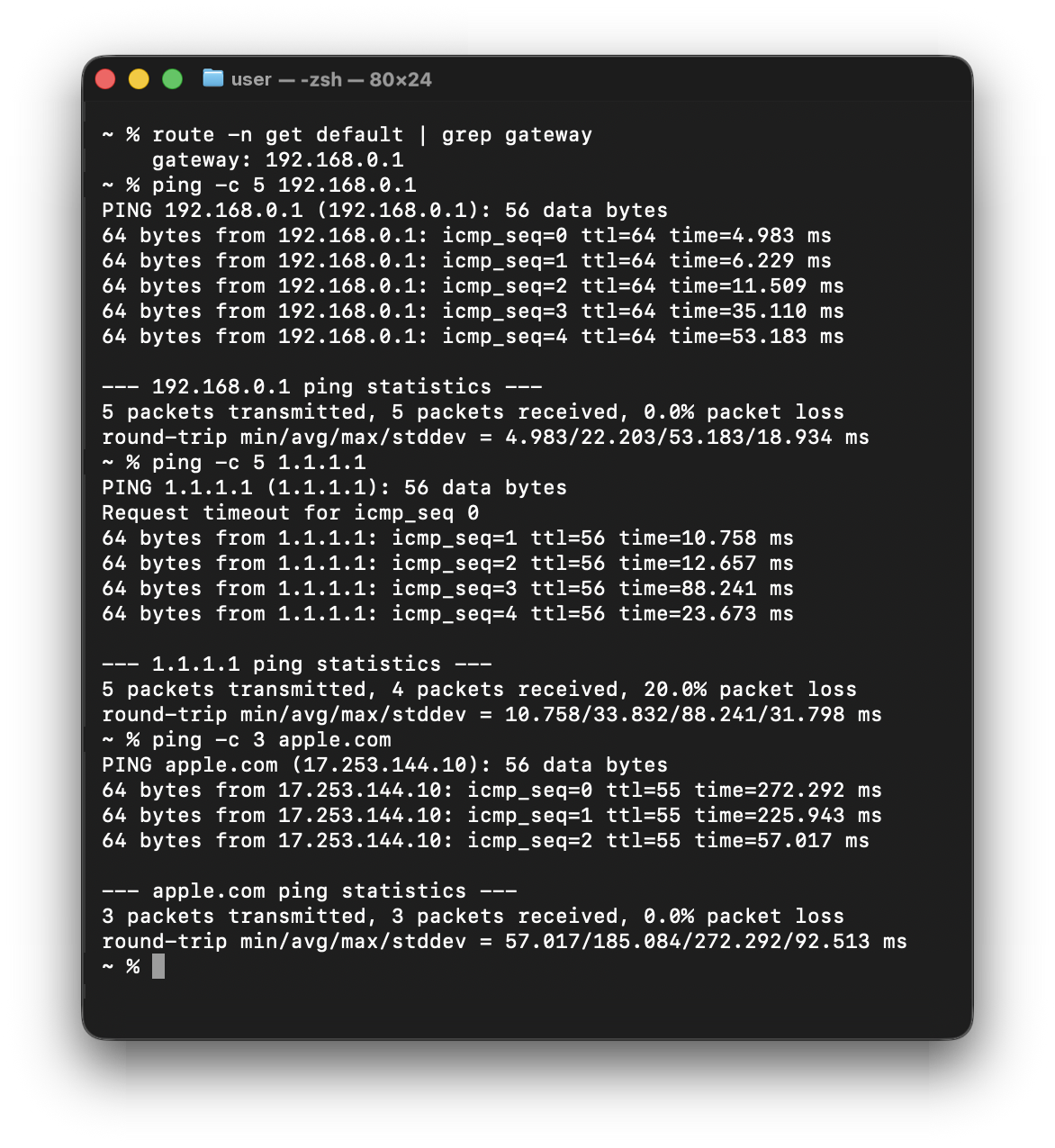
1. Can your Mac reach your router? Find the router's address, then ping it:
route -n get default | grep gateway
ping -c 5 192.168.1.1 (use the address the first command showed)
No replies means the problem is between your Mac and the router: Wi-Fi, a cable, or the router itself. Replies that take more than a few dozen milliseconds, or lost packets, point to weak Wi-Fi.
2. Can you reach the internet?
ping -c 5 1.1.1.1
If the router answered but this doesn't, your internet is down past the router: the modem or your provider. If it answers but the times are high (hundreds of milliseconds) or some packets are lost, your internet is up but slow.
3. Is it just name lookups (DNS)?
ping -c 5 apple.com
If 1.1.1.1 answers but apple.com fails with "cannot resolve", the internet works but your DNS doesn't, which makes every website look dead.
For a fuller picture of a slow connection, macOS has a built-in test: run networkQuality in Terminal. It measures your download and upload speed and how responsive the connection is under load.
See the answer without Terminal
Running pings works, but not every time a video call stutters. NetCheck is a free menu bar app that answers both questions at a glance.
- Down: the dot in your menu bar is green when the internet answers and grey when it doesn't. You get a notification the moment it drops, and another when it's back.
- Slow: click the dot to see the response time meter, which shows how quickly your connection is answering right now. You can also show the response time next to the dot, or let the dot change colour: green when the connection is quick, amber when it's slow, red when it's very slow.
- Where: when you're offline, the Network Path Diagram shows whether the break is between your Mac and the router, or between the router and the internet.
NetCheck Pro ($14.99, one-time) adds a built-in speed test for download, upload and responsiveness, and a Network History with a reliability score, if you need a record of how often it's been slow or down.
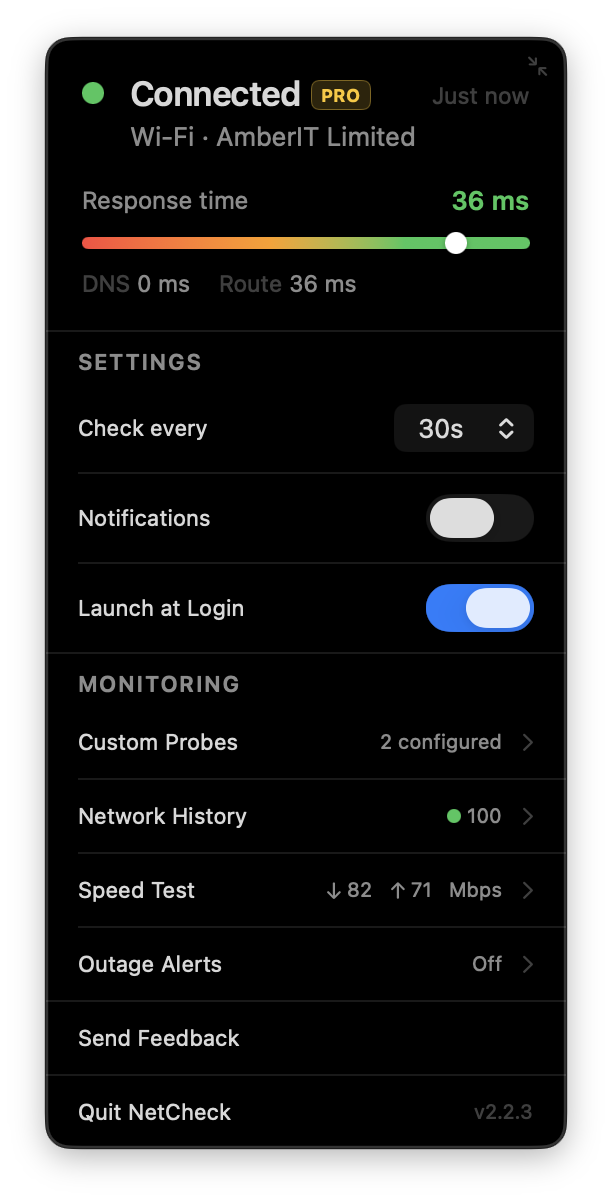
NetCheck is free on the Mac App Store, with an optional one-time Pro upgrade.
Get NetCheck See all featuresFrequently Asked Questions
What counts as a slow response time?
As a rough guide, replies under about 50 milliseconds feel instant, 100 to 200 milliseconds is noticeable on calls and games, and anything over a few hundred milliseconds feels slow everywhere. Lost packets matter as much as the number.
Is it my Mac or the whole network?
Try another device on the same Wi-Fi. If it's slow or offline too, the problem is the router, the modem or your provider, not your Mac.