How to Redeem a Promo Code for a Mac App Store App
If a developer gave you a free promo code — for a review, as a supporter, or just as a gift — here's exactly how to redeem it on a Mac. The steps are the same for any Mac App Store app; this guide uses NetCheck as the live example.
Method 1: Redeem From a Link
Use this if the code you got came with a redemption link.
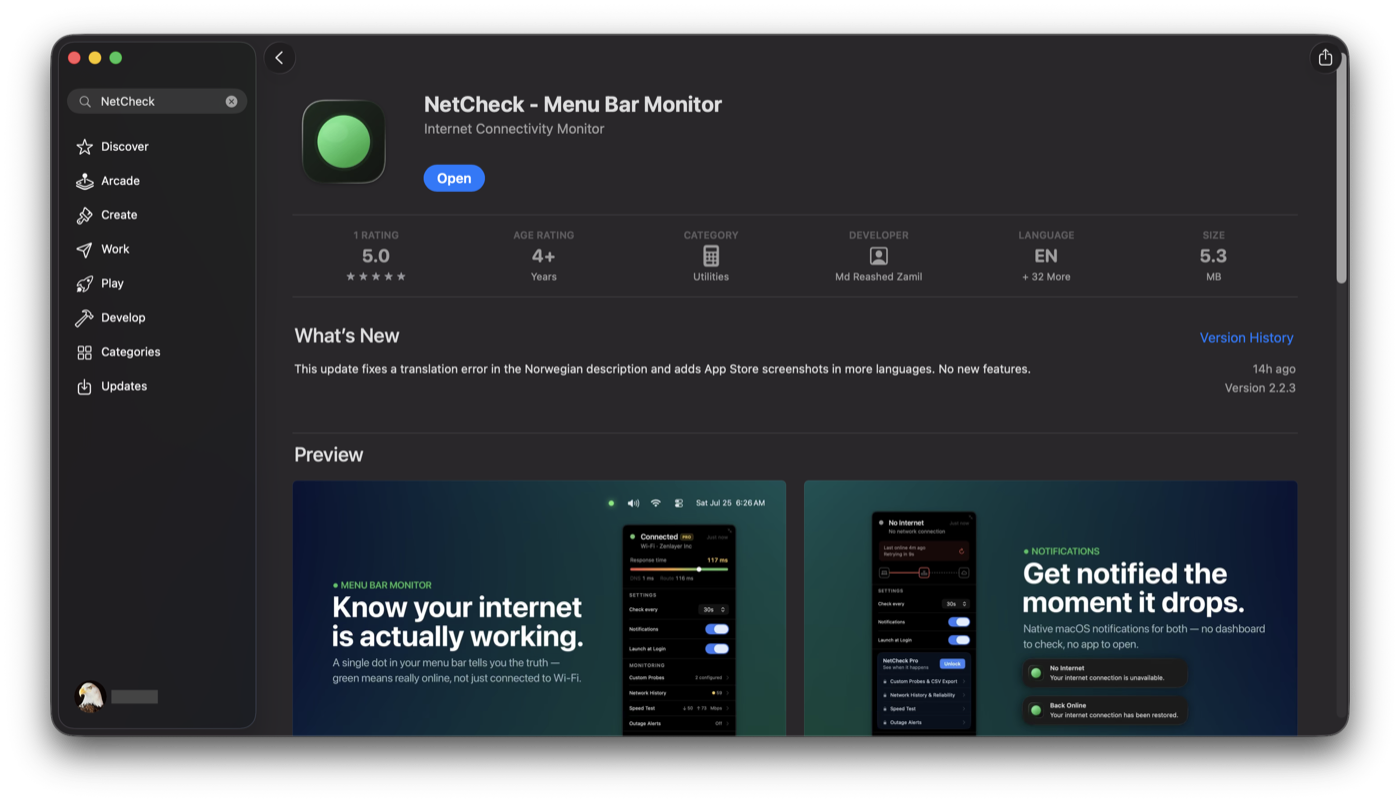
1. Install the app first
Get the free app from the Mac App Store before redeeming the code — the code just unlocks a paid feature inside an app you already have installed. If it's already installed, the App Store shows Open instead of Get.
2. Open the redemption link
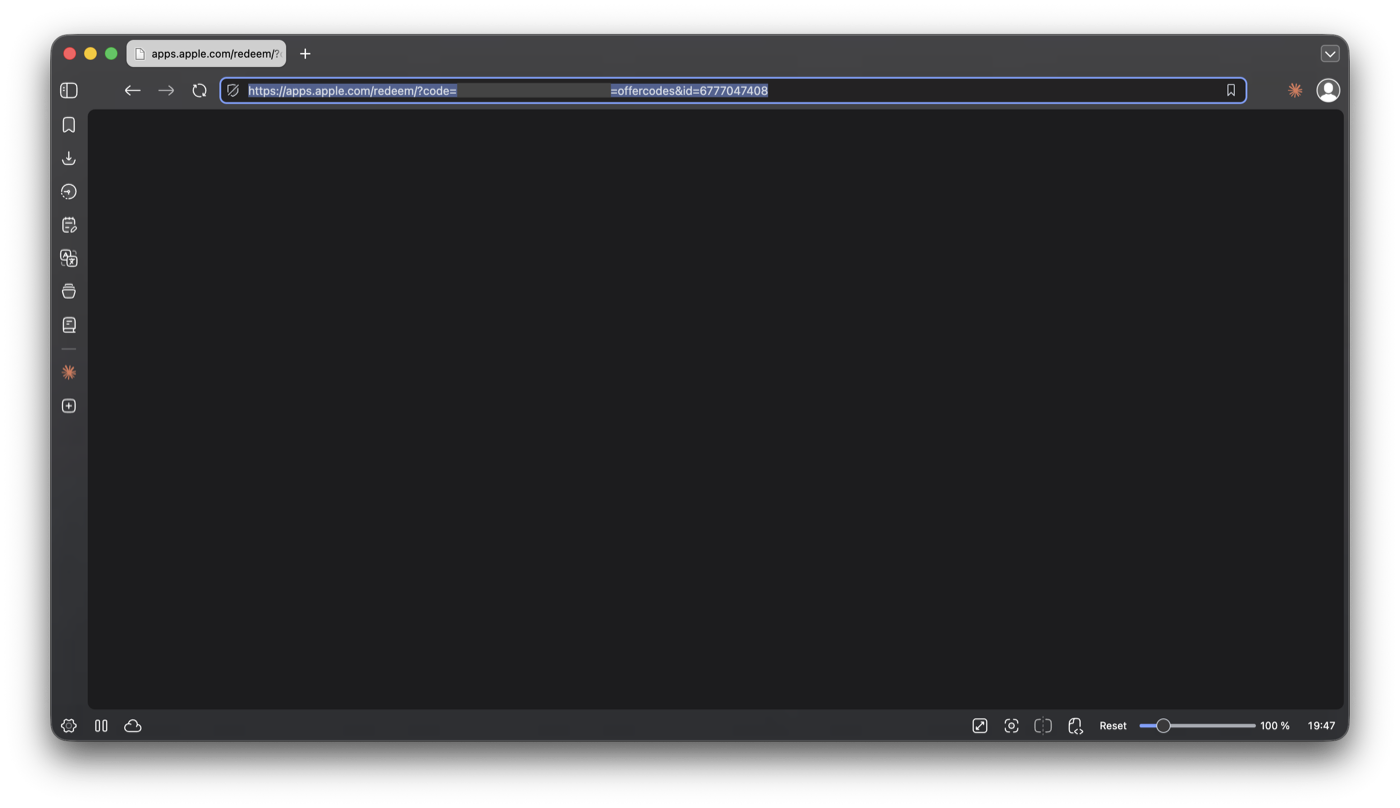
The developer's code comes with a redemption link that looks like apps.apple.com/redeem?ctx=offercodes&code=.... Open it in a browser on the same Mac you'll use the app on.
The page itself will look blank — that's normal. It's not a real webpage, just a quick handoff that redirects straight into the App Store app.
3. Confirm opening the App Store
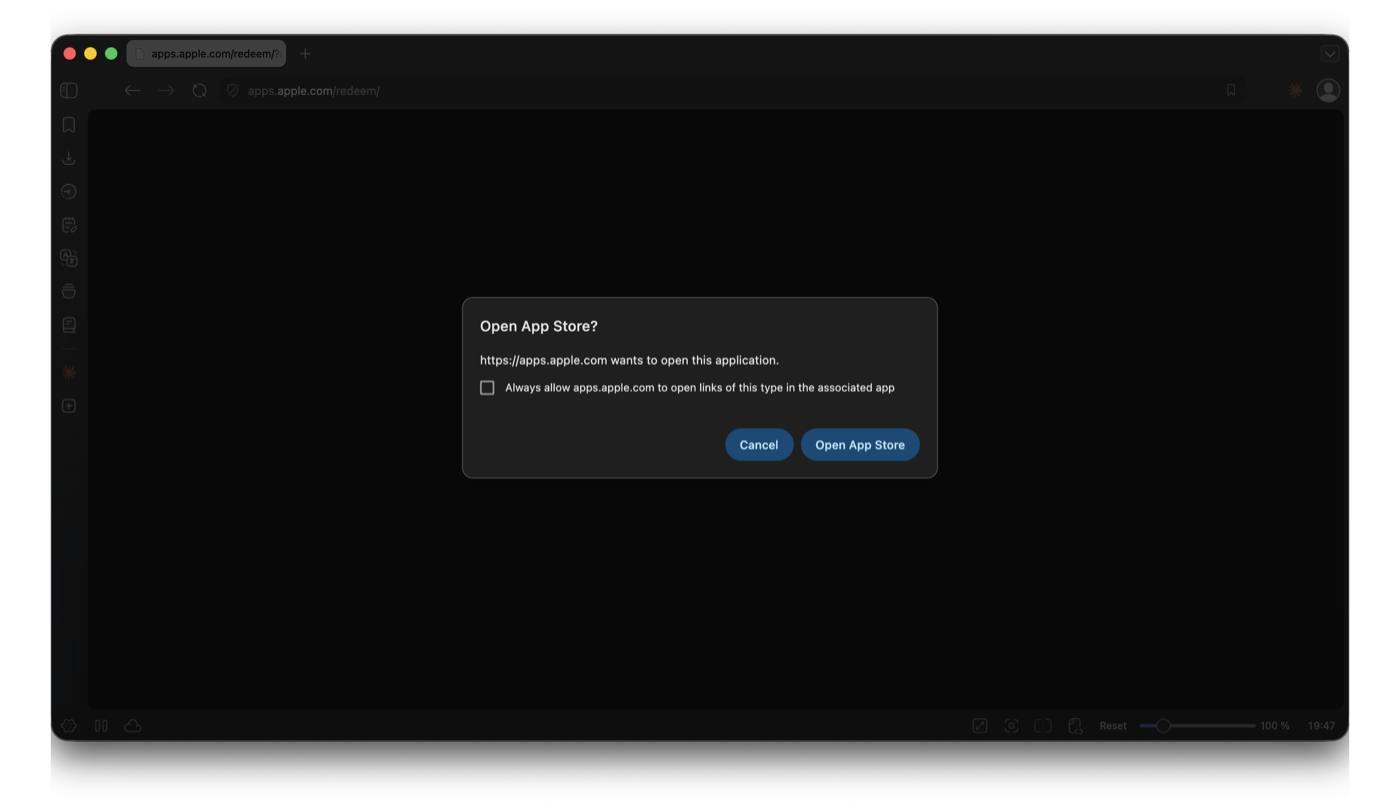
macOS will ask whether to open the App Store app. Click Open App Store.
4. Click Redeem
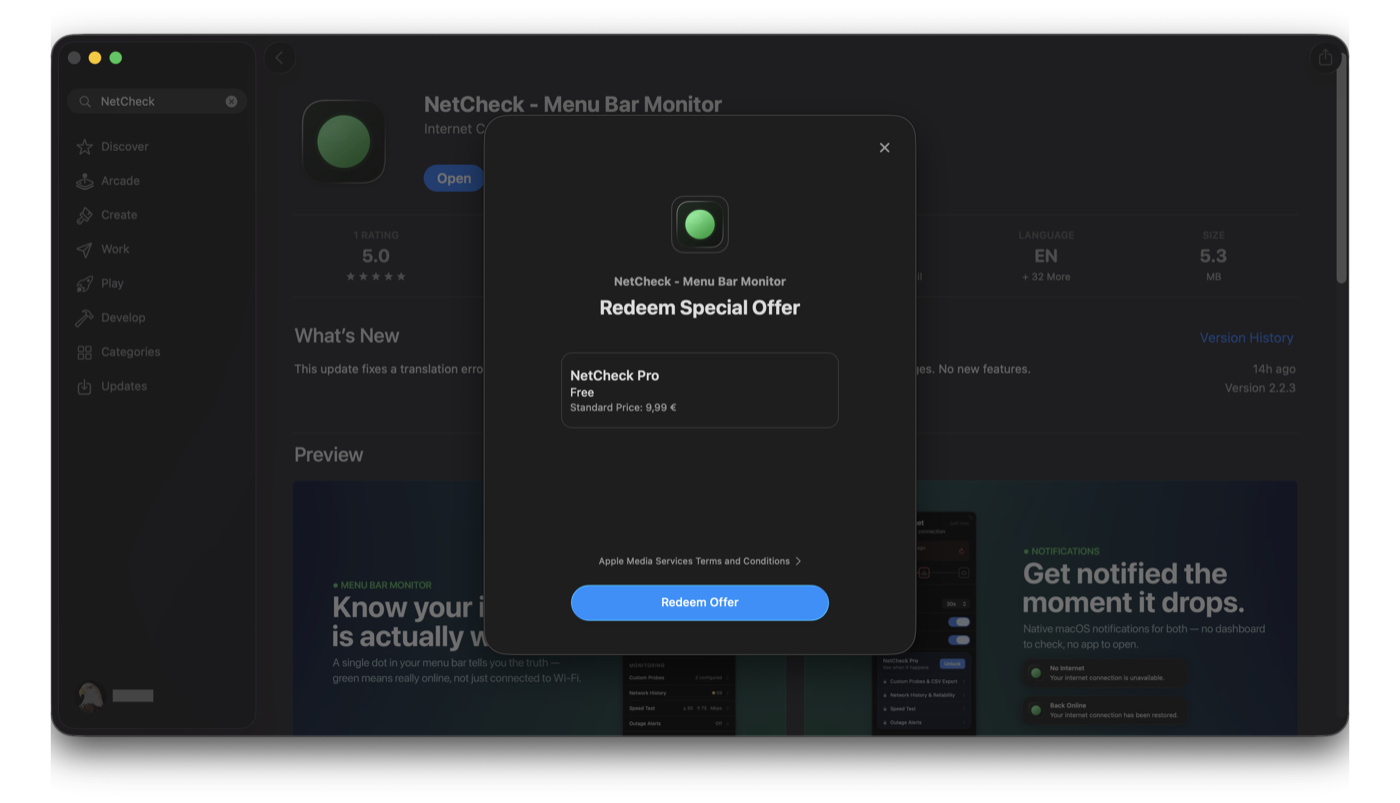
The App Store opens to a confirmation screen with the app and your code already filled in. Click Redeem Offer.
5. Done
The paid feature unlocks in the app right away. If it doesn't reflect immediately, just reopen the app.
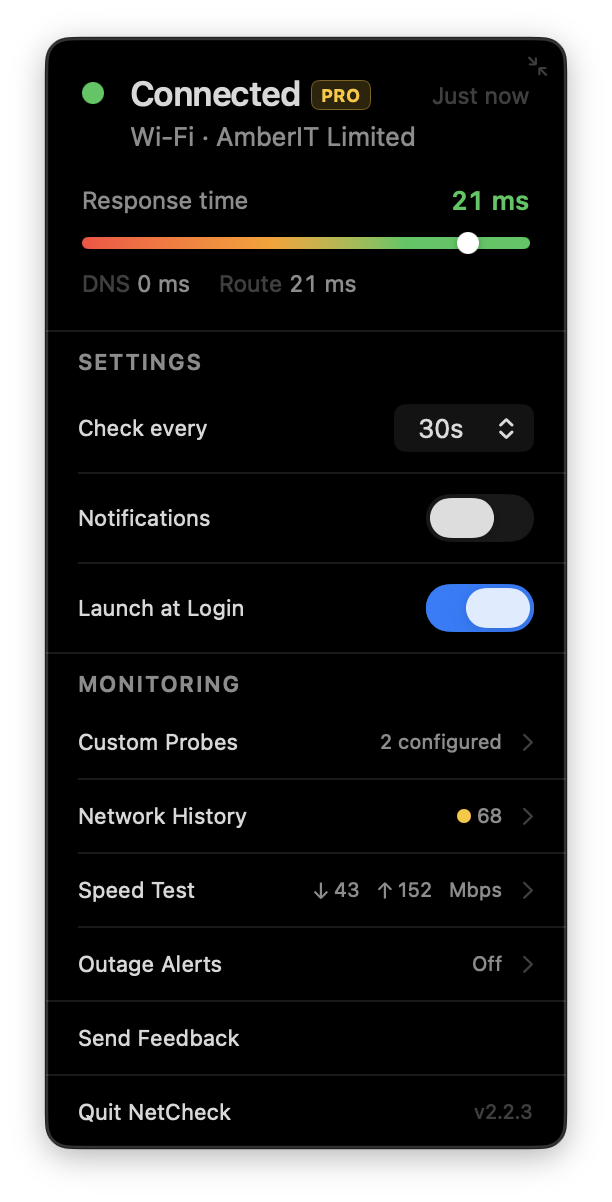
Redeeming a code for NetCheck specifically? Get the free app first, then follow the steps above.
Get NetCheck See all featuresMethod 2: If You Don't Have the Link, But Have the Code
Use this if you were just given the code itself, with no redemption link — or if the link method above doesn't work. You can redeem the same code manually from your Account page. The app doesn't need to be installed yet for this method either.
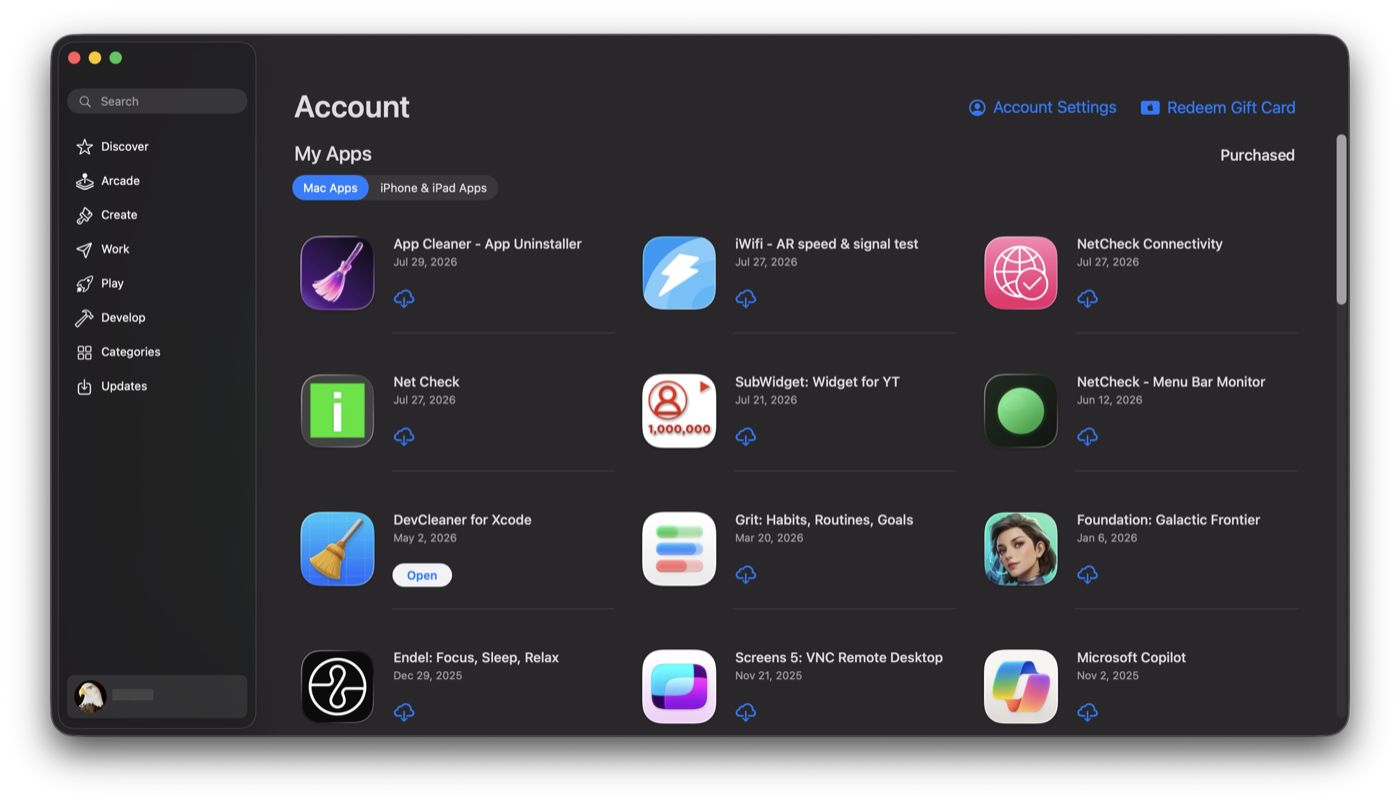
1. Open your Account page and click "Redeem Gift Card"
Click your name/profile icon in the App Store's bottom-left sidebar to open your Account page, then click Redeem Gift Card in the top-right.
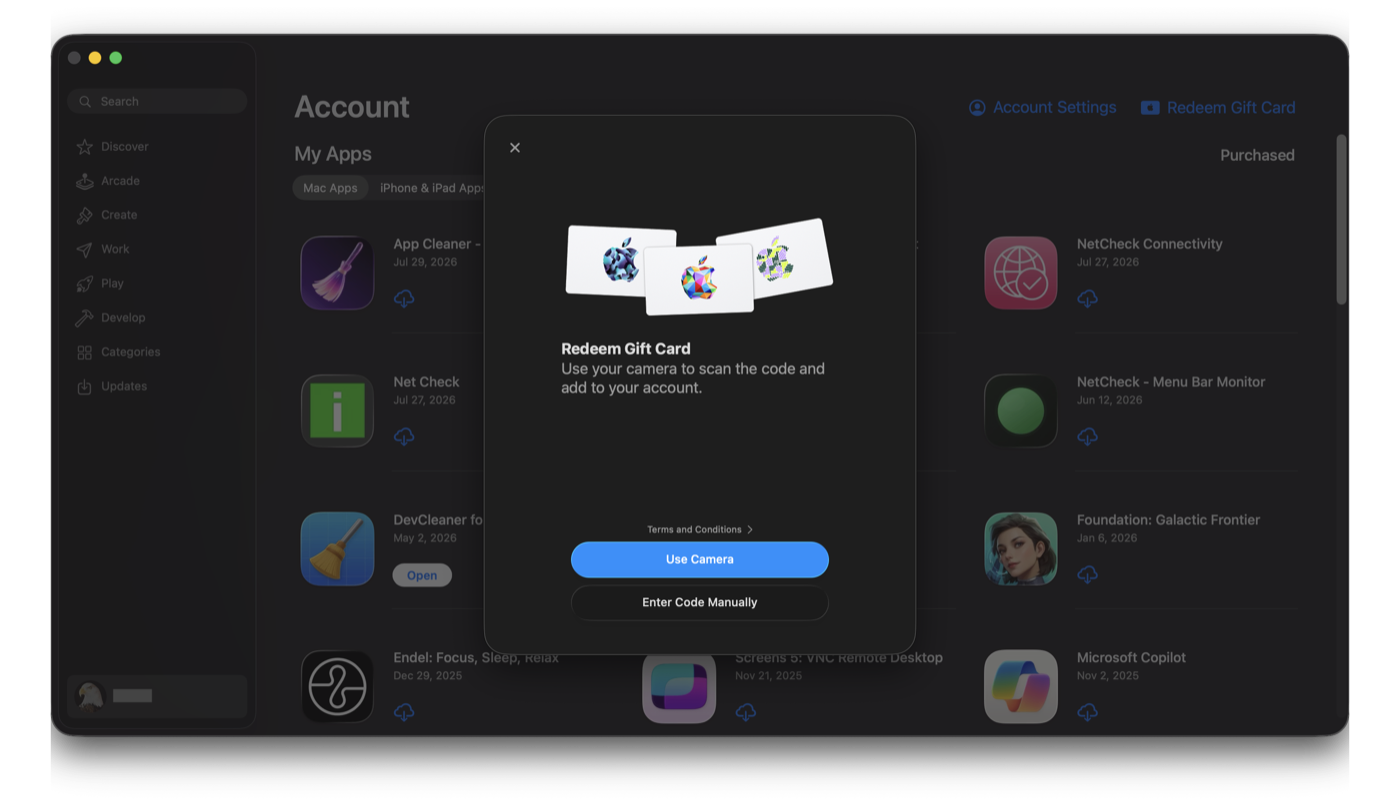
2. Choose "Enter Code Manually"
A screen offers two options — scanning a physical gift card with your camera, or typing a code in by hand. Click Enter Code Manually.
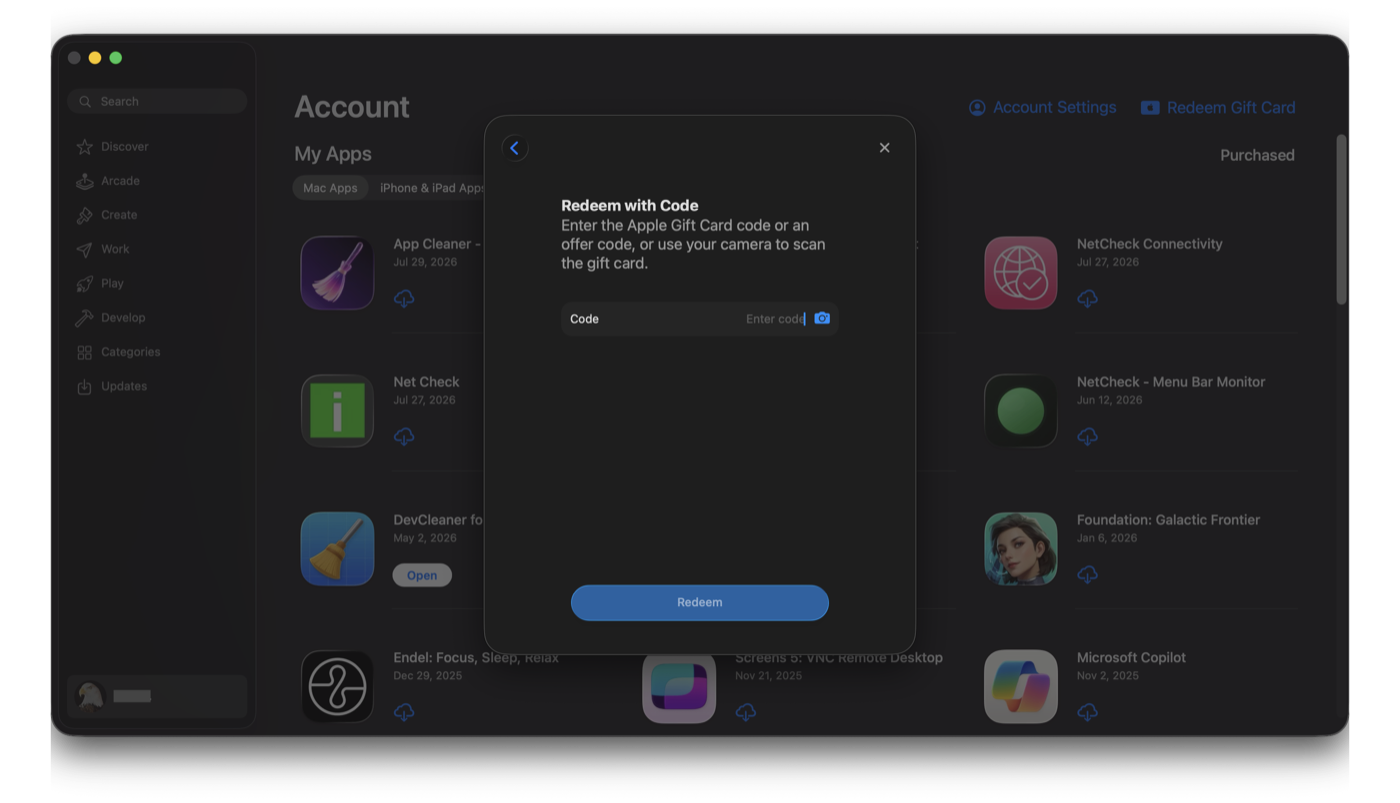
3. Type in your code and redeem
Enter the code in the Code field, then click Redeem.
Frequently Asked Questions
What if the link doesn't automatically open the App Store?
Use "Method 2: If You Don't Have the Link, But Have the Code" above — it gets you to the same result without relying on the link.
Do I need an Apple ID to redeem a code?
Yes — you need to be signed into the App Store with any Apple ID before redeeming. The code itself doesn't require a payment method on file.