Mac Says Connected But No Internet? Here's Why (and How to Fix It)
If your Mac's Wi-Fi icon shows full bars but nothing loads, the icon isn't lying to you — it's just not measuring what you think it's measuring. The Wi-Fi status in macOS only reflects your connection to the local router. It has no idea whether that router can actually reach the internet. When your ISP drops, your router's upstream connection fails, or you're stuck behind a hotel or airport captive portal, the Wi-Fi icon keeps showing full bars, because as far as it's concerned, nothing about your local connection changed.
Why This Happens
There are three separate links in the chain between your Mac and the actual internet: your Mac to your router (Wi-Fi signal), your router to your modem, and your modem to your ISP. macOS's built-in indicator only checks the first link. It confirms you're talking to your router — nothing more.
That means any failure past your router is invisible to the icon: an ISP outage, a modem that needs a reboot, or a public network that requires you to log in through a browser page before it'll let real traffic through (a captive portal). In every one of these cases, you're "connected," and you're also completely offline.
Check It Yourself in Under a Minute
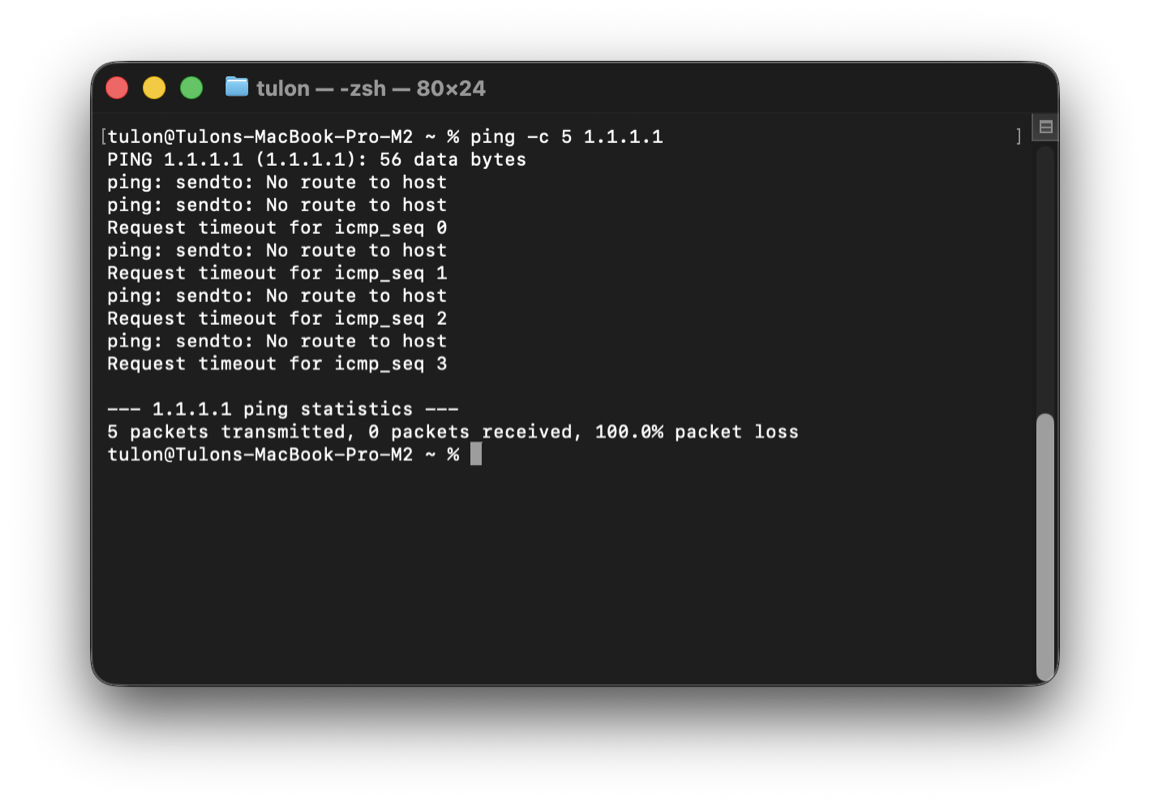
You don't need to install anything to confirm this. Open Terminal and run a direct ping to an IP address (not a domain name — more on why below):
ping -c 5 1.1.1.1
If you see repeated Request timeout or No route to host lines instead of real replies, that confirms it: your Mac genuinely has no path to the internet, regardless of what the menu bar says.
Two more things worth checking before you assume the worst:
- Try another device on the same network. If your phone also can't load anything over the same Wi-Fi, the problem is upstream of your Mac entirely — router, modem, or ISP.
- Check your router for a solid internet/WAN light. A blinking or red light there usually means the modem-to-ISP link is the actual break.
A Way to Stop Wondering
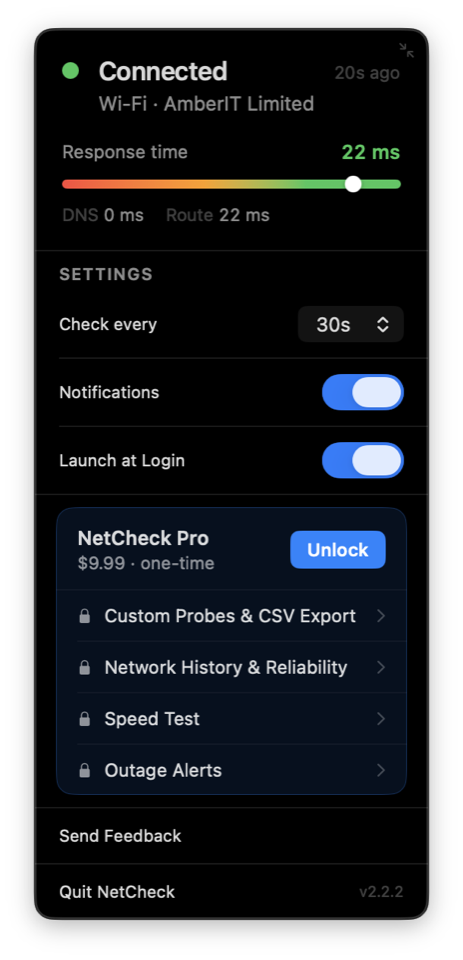
Running a manual ping test works, but it's not something you want to do every time your Mac feels slow. That's the gap NetCheck fills — a free macOS menu bar app that does exactly what the built-in icon doesn't: it verifies real internet access, not just a local Wi-Fi handshake.
It sits in your menu bar as a single dot. Green means it just confirmed real internet access with a lightweight probe, on a timer you control (5 seconds to 5 minutes). Grey means it didn't — and if you have notifications on, you'll get told the moment it happens, and again the moment it's back.
No account, no ads, no dock icon. It's free.
Keep a Record, If You Need Proof
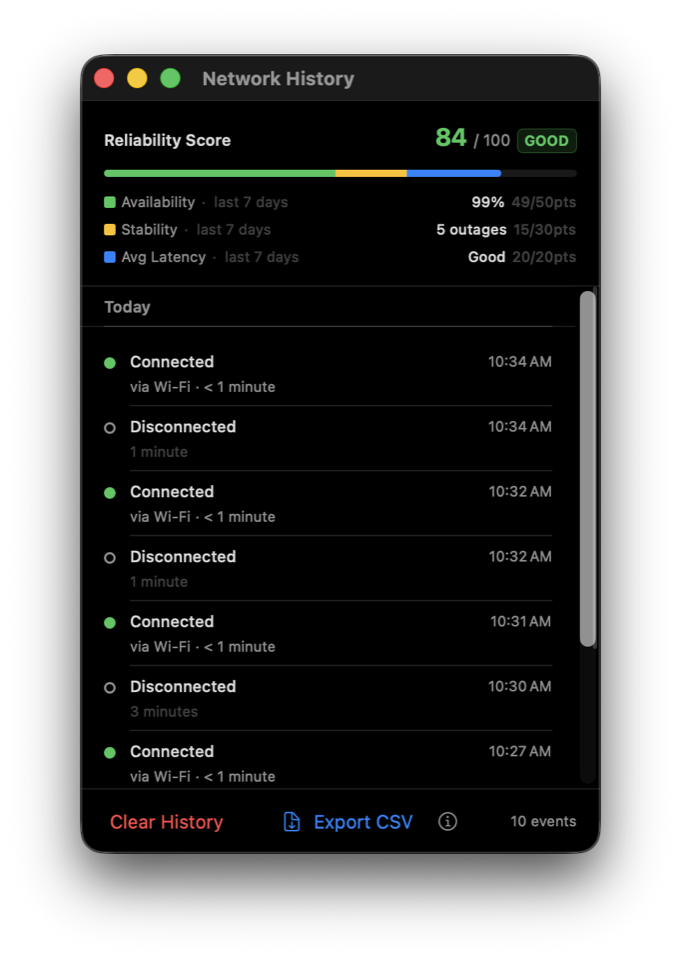
If drops keep happening and you need to make the case to your ISP that it's genuinely their problem, NetCheck Pro ($9.99, one-time — no subscription) adds a Network History view: a timestamped log of every drop and reconnect, plus a 0–100 reliability score broken down by availability, stability, and latency. You can export the whole thing as a CSV if you need something to hand over as evidence.
NetCheck is free on the Mac App Store, with an optional one-time Pro upgrade.
Get NetCheck See all featuresFrequently Asked Questions
Is it my Wi-Fi or my internet?
If other devices on the same network also can't load anything, it's not your Mac specifically — it's the network or the connection behind it. Wi-Fi (the local link to your router) and internet (the link from your router out to the world) are two different things, and either one can fail independently of the other.
Why does Wi-Fi show connected with no internet?
Because "connected" in the menu bar only means your Mac successfully joined the local network — it says nothing about whether that network has a working path to the internet. A dead ISP link, a modem that needs a restart, or a captive portal you haven't logged into yet will all show as "connected" while nothing actually loads.
How do I get notified automatically when my internet drops?
Turn on Notifications in NetCheck's Preferences (it's free) and it'll alert you the moment a real probe fails, and again when it recovers — no need to keep checking manually.